Category: WordPress

  • How to Control WordPress Blocks with PersonalizeWP

    How to Control WordPress Blocks with PersonalizeWP

    Reading Time: 5 minutes

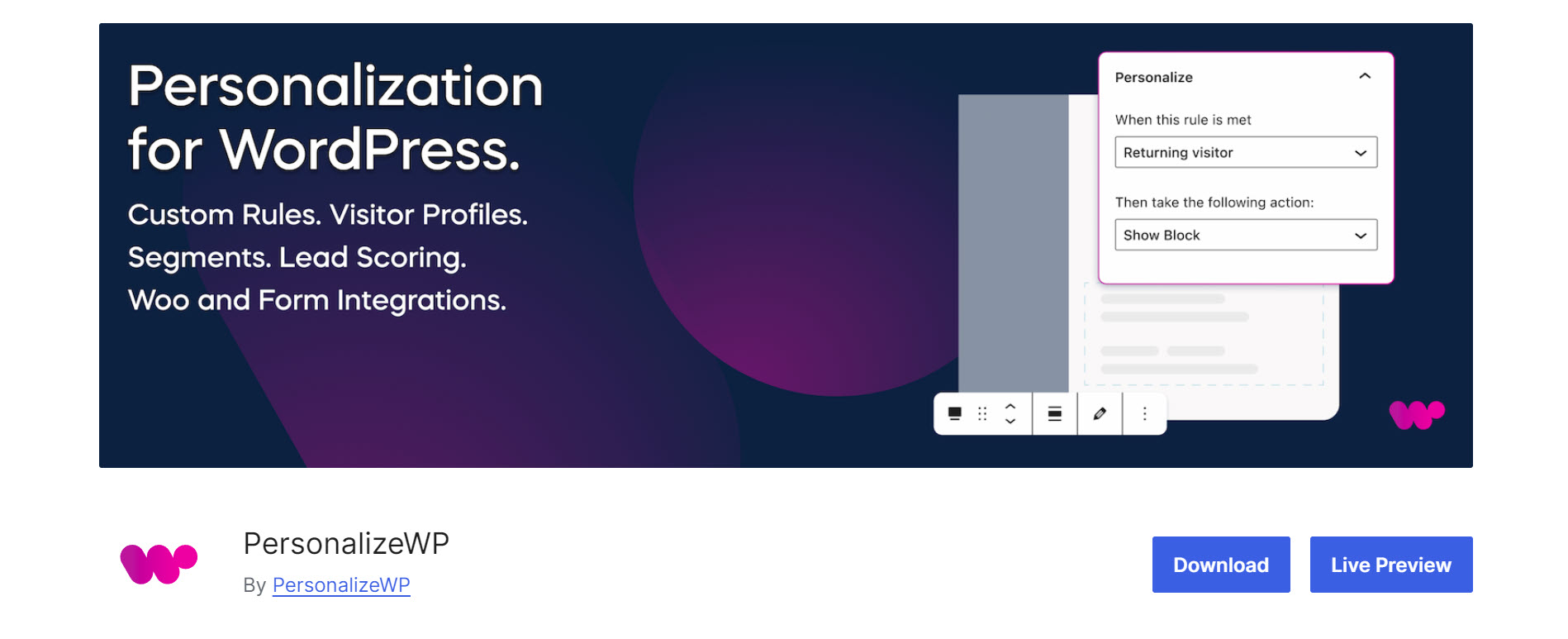
    PersonalizeWP is a WordPress plugin that allows you to control who can see a WordPress block and when they can see that block. It works with any block and is great for marketing. It can show personalized sales, offers, custom forms, and more. In this post, we’ll look at PersonalizeWP and see how to use it to show or hide a WordPress block. I’ll use WS Form for my examples.

    Install PersonalizeWP

    First, install and activate PersonalizeWP by going to Plugins > Add New Plugin. Search for PersonalizeWP, click Install Now, and then Activate.

    Next, view the product presentation and set up your plugin.

    Integrate PersonalizeWP with WS Form

    PersonalizeWP works with any WordPress block. This includes WS Form. It integrates well with any form created with WS Form, allowing you to show or hide the form based on the conditions you choose. This integration is automatic, so you don’t have to do anything but make your selections. Let’s look at those selections and see how they work with WS Form.

    First, add a WS Form block to your WordPress post or page.

    Next, with the WS Form block selected, choose the form you want to use by selecting it from the Form dropdown box in the sidebar on the right.

    You’ll notice a new set of options below this section called Personalize. This was automatically added to the options when you installed PersonalizeWP. Integration with WS Form was instant. This section includes two options under Rules. The first is an IF statement and the second is a THEN statement. Here’s where you can choose and add rules that apply to your WS Form.

    Personalize IF Rules

    The IF rules specify the type of user you want to target for your WS Form. Selecting the IF dropdown box shows your premade or custom options. Options include the time they’ve spent on the page, the type of device they’re using, whether or not they’re a new or returning visitor, their local time, their location, and whether they’re logged in or not.

    You can add as many IF rules as you want. Simply click the plus icon and choose the rule from the list. The IF rules work as an AND statement, so all rules must be met for the action to take place.

    Once you’ve added an IF rule, the plus icon turns into a minus icon. Click the minus icon to remove the rule. In this example, I’ve added three IF rules. In this example, the visitor must be on the website for at least 30 seconds, be a new visitor, and be based in the UK. If any of the three conditions are not met, PersonalizeWP will not go forward to the next step, which is to perform an Action.

    Personalize THEN Actions

    The THEN rules tell WS Form what to do if the IF rules have been met. It’s a basic IF THEN statement. IF this rule is met, THEN perform this action. The THEN actions include showing or hiding the form. You can only include one THEN action because using both would cancel each other. The Show option is the default, which will display the form if the conditions are met.

    In this example, if the visitor has been on the website for 30 seconds or more, and they’re a new visitor, and they’re in the UK, the form will display for them. If any of the three conditions is not met, the visitor will not see the form.

    Creating a Custom PersonalizeWP

    If you need a rule for your WS Form that isn’t built into PersonalizeWP, you can create your own. In the WordPress dashboard, go to Personalize > Personalization and click Create Rule.

    This opens the rule editor, where you can create as many rules as you want. Enter the name of your rule and choose the category from the Category dropdown box. Categories include device types, location, other, purchases, time, and user types. For my example, I want the form to show based on the date, so I’ve selected Time for the category.

    Next, choose the Conditions. They include the location, their logged-in status, time on the page, new visit, last visit, visit period, visit time, device type, and date. I’ve selected Date so I can have the form display on a specific day.

    Next, choose a Comparator. These options will vary based on the Condition you’ve selected. The Comparator options for Date include Before, After, and Is. I’ve selected Is so the form will show on the date I’ll choose.

    Finally, choose the Date. This specifies the rule to only display on the date I’ve selected. I can now add a new rule or save this rule by clicking Create rule.

    I can now choose the new rule from the dropdown box when I add a form to the content. I’ve selected the new rule and set the action to show the block. Now, my form will only display on the date that I selected when I created the rule.

    Ending Thoughts on PersonalizeWP and How it Integrates with WS Form

    That’s my look at PersonalizeWP and how it controls the visibility of WordPress blocks based on user rules that you set. integrates with WS Form. It works well with any WordPress block and integrates with the Gutenberg editor automatically. It’s easy to use and I recommend it for showing and hiding your content.

    Have you tried PersonalizeWP to control the visibility of your WordPress blocks? Let me know in the comments below.

  • Gutenberg is Coming and Divi is Still the Best Choice

    Gutenberg is Coming and Divi is Still the Best Choice

    Reading Time: 6 minutes[et_pb_section bb_built=”1″ fullwidth=”on” specialty=”off”][et_pb_fullwidth_post_title title=”on” meta=”on” author=”on” date=”on” categories=”on” comments=”on” featured_image=”on” featured_placement=”background” parallax_method=”off” text_orientation=”center” text_color=”light” text_background=”on” text_bg_color=”rgba(0,0,0,0.5)” use_border_color=”off” custom_padding=”320px||320px|” title_font_size=”52px” title_font_size_phone=”36px” title_font_size_last_edited=”on|phone” parallax=”on” _builder_version=”3.0.90″ /][/et_pb_section][et_pb_section bb_built=”1″ fullwidth=”off” specialty=”off”][et_pb_row parallax_method=”off” parallax_method_1=”off” custom_padding=”40px|120px|40px|120px” parallax_2=”off” parallax_method_2=”off” custom_padding_tablet=”20px|0px|20px|0px” custom_padding_last_edited=”on|desktop” _builder_version=”3.0.90″][et_pb_column type=”4_4″][et_pb_text background_layout=”light” use_border_color=”off” _builder_version=”3.0.90″ border_color_all=”#ffffff”]

    Gutenberg will change WordPress forever. It’s changed quite a bit since I reviewed it back in August. The goal is to have an interface that’s more intuitive – similar to Wix or Squarespace – that would be easier for those new to WordPress to use, add new features, and become more standardized. If the news I heard at WordCamp US 2017 is any indication, Gutenberg will change the way we see and design websites.

    Users will be able to move the layout elements around to create uniform designs that they want to see. For example, if you want your browser to show the logo of every website in the bottom right corner of the screen and the menu vertically on the left, Gutenberg (eventually) will let you. This is in part an attempt to improve accessibility.

    In other words, Gutenberg will control the entire screen – not just the content area. The content itself will be blocks. Each content block will have its own attributes. Content blocks such as headings, body text, quotes, etc., are built in, but we’re not limited to those. Developers will be able to create their own content blocks. For example, you can create a content block for recipes and sell it as a plugin. Even with all of the things it can do, the output of Gutenberg is clean HTML 5. It will take several phases for all of the features to be implemented.

    With all of the layout options and content blocks, the question I hear a lot is how this affects builder plugins and themes such as Beaver Builder, Elementor, and Divi. Will they become obsolete? What about all of the layouts and child themes that we’ve created? What about all of the websites we’ve built? Will the future of WordPress put developers and designers out of business?

    No.

    The future of WordPress will not put developers and designers out of business

    First, let me assure you that big-name companies that provide builder tools, such as Elegant Themes with Divi, have no intention of going out of business. They’re not even afraid of what’s coming. Instead, they’ve been learning about, and even contributing to, the Gutenberg project for a while. They’re helping to influence what Gutenberg can and cannot do. They can use Gutenberg to their advantage by creating new blocks and utilizing the blocks that are built in. And – they’ll be able to turn Gutenberg off within the theme, so they’ll still have control over the website’s design.

    Second, it will take years for Gutenberg to do what Automattic has in mind. The world of web design will be much different by then. Just think about today’s tools vs last year’s tools. What a difference one year makes!

    Third, layouts and child themes will work as normal (that’s the plan anyway). Gutenberg is purposefully designed to not break websites. Themes include controls for rows, columns, etc. Gutenberg relies on the themes for this data.

    Fourth, websites still need to be designed and built, and builder tools will still be the best options for many designers and developers. And in my opinion the best of those options is, and will still be, Divi.

    Why Divi?

    Elegant Themes is forward-thinking. New features are added and older features are expanded. Everything becomes more streamlined.

    The drag-and-drop builder is intuitive and powerful. It’s hard to imagine a design that can’t be done with Divi. Beginners can build nice sites easily and professionals can create designs that I can’t even imagine.

    There are lots of layouts already designed by professional designers. Elegant Themes gives away a new free layout every week. The layouts include multiple pages and royalty-free images, and the ET blog even has tutorials on how to use them. My website is one of those layouts.

    The number of tutorials available is amazing. Many of the developers and designers that use Divi have websites with tons of tutorials for free. You can learn how to do almost anything with Divi.

    The third-party support is over the top. If you want a layout, child theme, or plugin to add new features to your website, you’ll have an easier time finding it for Divi than other themes. There isn’t another theme with the amount of products available from third-party suppliers. There are dozens of marketplaces and online stores to purchase from.

    The number of people willing to help is overwhelming. If you need help with Divi, you can go to ET’s support page, the ET blog, one of the many groups devoted to Divi on Facebook, or one of the many websites that focus on Divi. Elegant Themes has a passion for this community and they want to see them grow. That’s why they give away so many layouts and images, publish tutorials, highlight plugins, write about websites made with Divi, and focus on designers. They celebrate their community.

    There’s no need to switch themes. There are no design restrictions with Divi. You can create old designs or cutting edge designs of the future. If you need to update your website’s design every year or so, Divi makes it easy to change designs. In fact, you can work on a new design in the background while your old design is active, and then change to the new design when you’re ready. That’s what I did with this website.

    Here’s a list of my favorite features:

    • drag and drop builder
    • frontend builder
    • header custmizations
    • layouts and child themes
    • plugins to add new features
    • customizer
    • a/b testing
    • custom CSS
    • options panel
    • tech support
    • blog
    • podcast
    • Facebook groups
    • thousands of tutorials on the web

    If I use Divi, do I have to use it forever?

    No. You can move away from Divi and still retain your page and post layouts by using the Divi Builder plugin. However, they won’t look the same as they do with your Divi site. Your layouts will keep their modules, but they will live within the confines of the new theme. This means they won’t look exactly like they did with Divi, but they’ll still work. You’ll still have forms, text areas, code modules, etc., but if your new theme has a sidebar your layout will live within the content area next to the sidebar.

    This is mostly useful if you’ve created your blog content using the Divi Builder to add elements to the blog posts. If you intend on retaining the exact layout for your page design, then you really should keep Divi anyway. So yes, you will need to do some design-work with your new theme. But, you’ll have that issue with other themes, so that’s nothing out of the ordinary.

    Anyone who has changed more than a theme or two has seen broken content. This should be expected no matter what theme you’re moving from or to. To say this is a problem with Divi is to misunderstand the nature of WordPress themes.

    Fortunately, with Divi there’s no reason to change themes. If you want a new design, simply design something new, grab a layout pack, buy a child theme, or hire a Divi designer (there are lots of them and they’re easy to find). With Divi you’re not stuck with one design. Creating something new is what Divi’s for. Divi is powerful enough to create any design you need. There’s no need to switch themes, so this isn’t even an issue. You can change your design as often as you want and do it with Divi every time.

    I recommend Divi even with Gutenberg on the horizon.

    Queue the question: “But you write for the ET blog, so did they pay you to say that?”

    No (but like most blogs I will get a kickback if you use my affiliate link – which I appreciate). I’m a freelance writer and I write for a lot of companies. If they needed me I would write for Beaver Builder, Elementor, Avada, X, Make, Genesis, etc. No matter who I write for, Divi is my WordPress theme of choice. I don’t like Divi because I write for Elegant Themes. I write for Elegant Themes because I like Divi and the Divi community.

    The bottom line:

    Gutenberg will not do away with the need for builder themes and Divi is the best out there as far as I’m concerned (and I’ve tried a lot of them in my WordPress writing career). Even with Gutenberg coming, Divi is still the best choice to design and build your WordPress websites.

    Let’s hear from you! What do you think about Gutenberg and Divi? Let us know in the comments below. 

    [/et_pb_text][/et_pb_column][/et_pb_row][/et_pb_section]

  • Guest Appearance on Elegant Theme’s Divi Nation

    Guest Appearance on Elegant Theme’s Divi Nation

    Reading Time: < 1 minuteToday I was the guest on Elegant Theme’s Divi Nation. We discussed writing content about Divi and how I got started as a content provider.

    https://www.elegantthemes.com/blog/divi-resources/creating-effective-content-for-your-brand-with-randy-brown-the-divi-nation-podcast-episode-54

  • Top 5 Apps To Keep Your Website Secure

    Top 5 Apps To Keep Your Website Secure

    Reading Time: 4 minutesThis guest post is from Kim DeLisle of SecureThoughts.com.

    I would like to thank Randy A. Brown for allowing me to contribute to the site! I love his musings on writing and the Bible, and he also writes some really great, practical articles like this one on Creating Amazon Affiliate Links in WordPress. If you haven’t already, make sure you take a look around once you’re done with this article!

    Top 5 Apps To Keep Your Website Secure

    Keeping your website secure is one of the top responsibilities of a webmaster. Not only do your security choices affect you (and possibly your livelihood) but also anyone who uses your site. (more…)

  • Creating Amazon Affiliate Links in WordPress

    Creating Amazon Affiliate Links in WordPress

    Reading Time: 12 minutesCreating Amazon Affiliate Links in WordPress

    We’ve all seen Amazon affiliate links. They’re everywhere. Sometimes they have pictures of products and sometimes they’re just a string of blue underlined text that looks like we should click on them. When we do, it takes us to Amazon. When we buy something through this link, the person who owns the link gets a portion of the sell. You can easily add Amazon links to your own WordPress website. (more…)

  • Building an Online Store with WooCommerce

    Building an Online Store with WooCommerce

    Reading Time: 9 minutesBuilding an Online Store with WooCommerce

    Building an online store is easier and cheaper today than it has ever been. It can also be complicated. There is a lot to track and keep up with. You have to track orders, customers, and inventory. As your store grows, this gets even more complex. To build and maintain an online store that will grow, you need a single solution that gives you everything you need in one easy to use package. That’s what WooCommerce does.

    WooCommerce is one of the most popular ecommerce solutions for WordPress with close to 6 million downloads and a rating of 4.4 out of 5. It’s a simple plugin that adds ecommerce features to your WordPress website. In this article we will take a look at its overall features and see why it’s the most popular choice for building online stores with WordPress. (more…)

  • All In One SEO Plugin vs WordPress SEO Plugin

    All In One SEO Plugin vs WordPress SEO Plugin

    Reading Time: 10 minutesseo plugins

    Search Engine Optimization is one of the most important, and easily overlooked, elements to WordPress websites. Websites can live or die based on how they rank in popular search engines. Awesome content isn’t worth much if no one knows it exists. You need to be found in the search engines. For this, you need to focus on search engine optimization (SEO).

    That’s where SEO plugins come in. They can format elements of your site in a way so that search engines not only find them, but rank them well for keywords and topics that users use to find them. There are many choices when it comes to SEO plugins. The two most popular are All in One SEO Plugin and Yoast’s WordPress SEO Plugin. In this article I take both for a spin and see how they compare. (more…)

  • Create a Social Media Link for WordPress

    Reading Time: 5 minutespinterestSocial media is a great way to stay in touch with your readers. Not everything you do has a place on your blog or website. Some things just work better on social media. In order to make it easy for your readers to find you on the social media of your choice you could place clickable icons on your site. Using some easy HTML and free icons, this tutorial will show you how to do just that.

    In this tutorial we are creating a Pinterest link for FantasyWritersWorkshop.com’s Pinterest board. Let’s do this! (more…)